
GCS
Ground Control Sports
Next Gen Tournament Management
Director User Manual
The Director’s Playbook
Everything you need to build, schedule, run and share a tournament.
Chapter 1
Getting Started
Create your account, sign in, and find your way around the director dashboard.
Create an account
- Go to groundcontrolsports.com and click Director Access.
- Choose Sign up, enter your email and a password.
- Open the confirmation email and click the link, then sign in.
- If you sign in before confirming, you'll be reminded to check your inbox.
- Forgot your password? Use the reset link on the sign-in page.
The dashboard
Every event you own or have been shared on appears as a card. Each card shows status, dates and quick actions. Use Archived (#) at the top to see events you've tucked away.
Create a new event
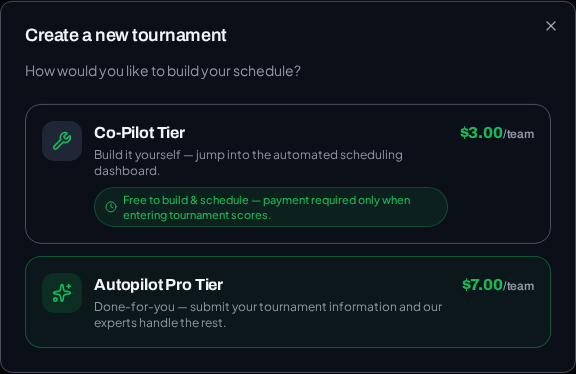
- Click + New.
- Pick Co-Pilot Tier ($3.00/team) to build it yourself, or Autopilot Pro Tier ($7.00/team) to have our team build it.
- Co-Pilot opens your new event right away. Autopilot Pro opens a request form — we review it and send an invoice directly.
Chapter 2
Event Setup
Tell the system about your event: sport, dates, venues, divisions and teams.
Event settings
Set the event name, sport (Baseball, Fastpitch Softball, Slow Pitch Softball, or Basketball), start date and number of days, and the public link fans will use.
Facilities & fields
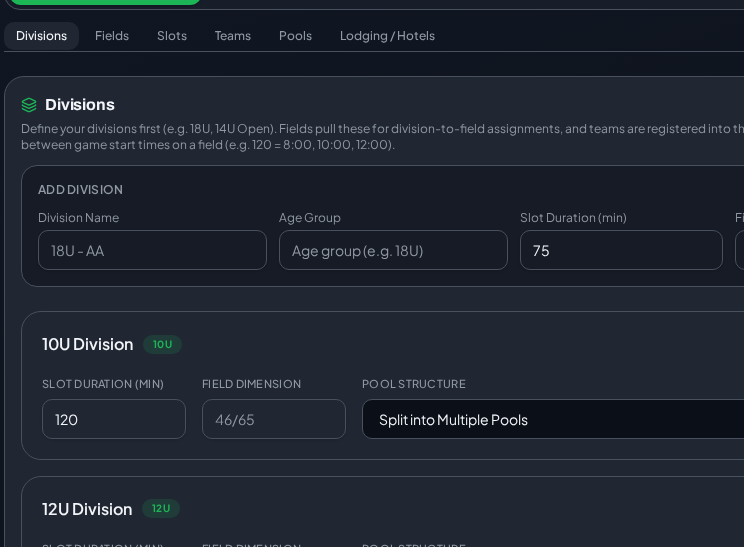
- Add each facility (e.g., Heritage Park) with its address.
- Add the fields or courts at each facility.
- Set available time slots per field per day, including game length and buffer.
- Upload a facility map so fans can find the right field.
Divisions & pools
Create divisions by age group and level (e.g., Division Name "18U - AA", Age Group "18U"). Split each division into pools for round-robin play, or let the system build pools for you.
Teams
- Add teams one at a time, or use Import Teams to paste or upload a list.
- Include coach name and contact so coaching conflicts can be avoided.
- Assign each team to a division and pool.
Chapter 3
Automated Scheduling
Set your rules once and let the engine place every game.
Constraints & Rules
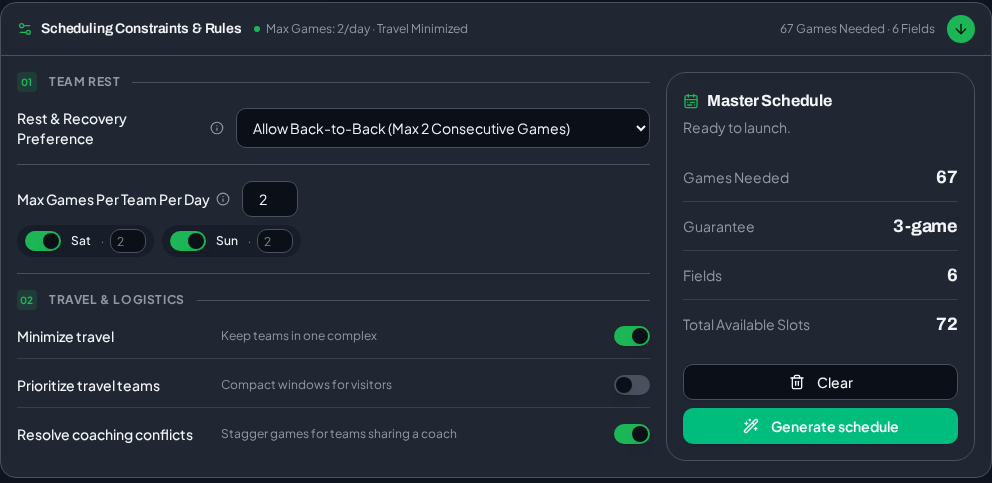
Open Schedule → Scheduling Constraints & Rules. The rules form is on the left; the Master Schedule metrics (games needed, game guarantee, fields, available slots) are on the right.
- Max Games Per Team Per Day controls daily load.
- Minimum rest between games, travel time between facilities, and coaching-conflict protection are all adjustable.
Generate the schedule
- Confirm the metrics show enough slots for the games needed.
- Click Generate schedule.
- Review the schedule and resolve any flagged conflicts.
Manual Schedule Canvas
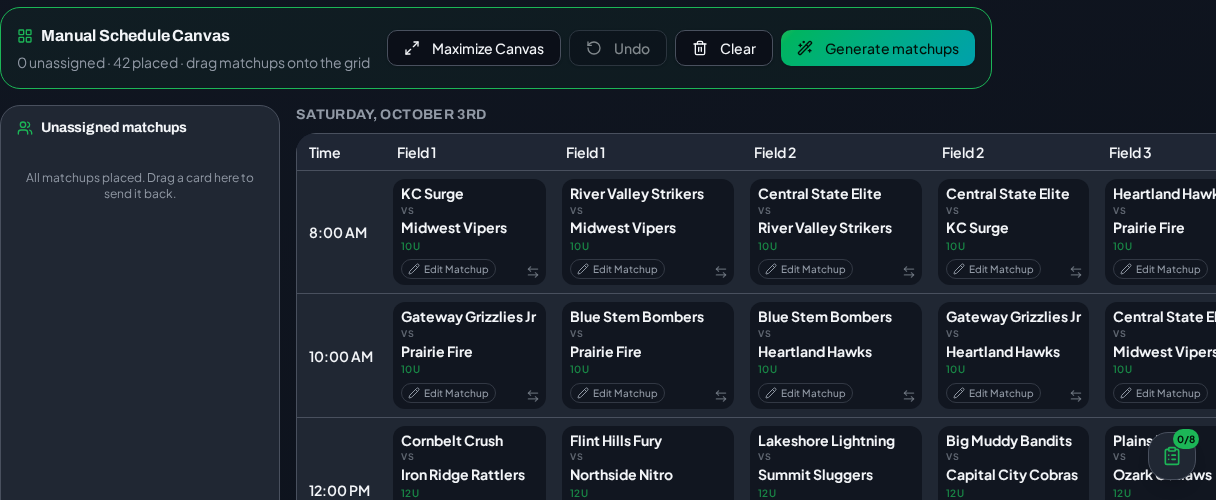
Drag and drop any game to a different field or time. Add custom games (exhibitions, crossovers) with Add Custom Game. Exhibition games don't affect standings.
Need help?
Use the "Overwhelmed with scheduling?" banner to request Autopilot Pro — we'll build it for you.
Chapter 4
Game Day Operations
Enter scores, give staff access, and handle weather in real time.
Activate your event
Open Billing & invoices to activate Co-Pilot ($3.00/team).
Enter scores
- Open Games & Operations → Scores.
- Find the game by team, field or time.
- Enter both scores and save. Standings and brackets update instantly.
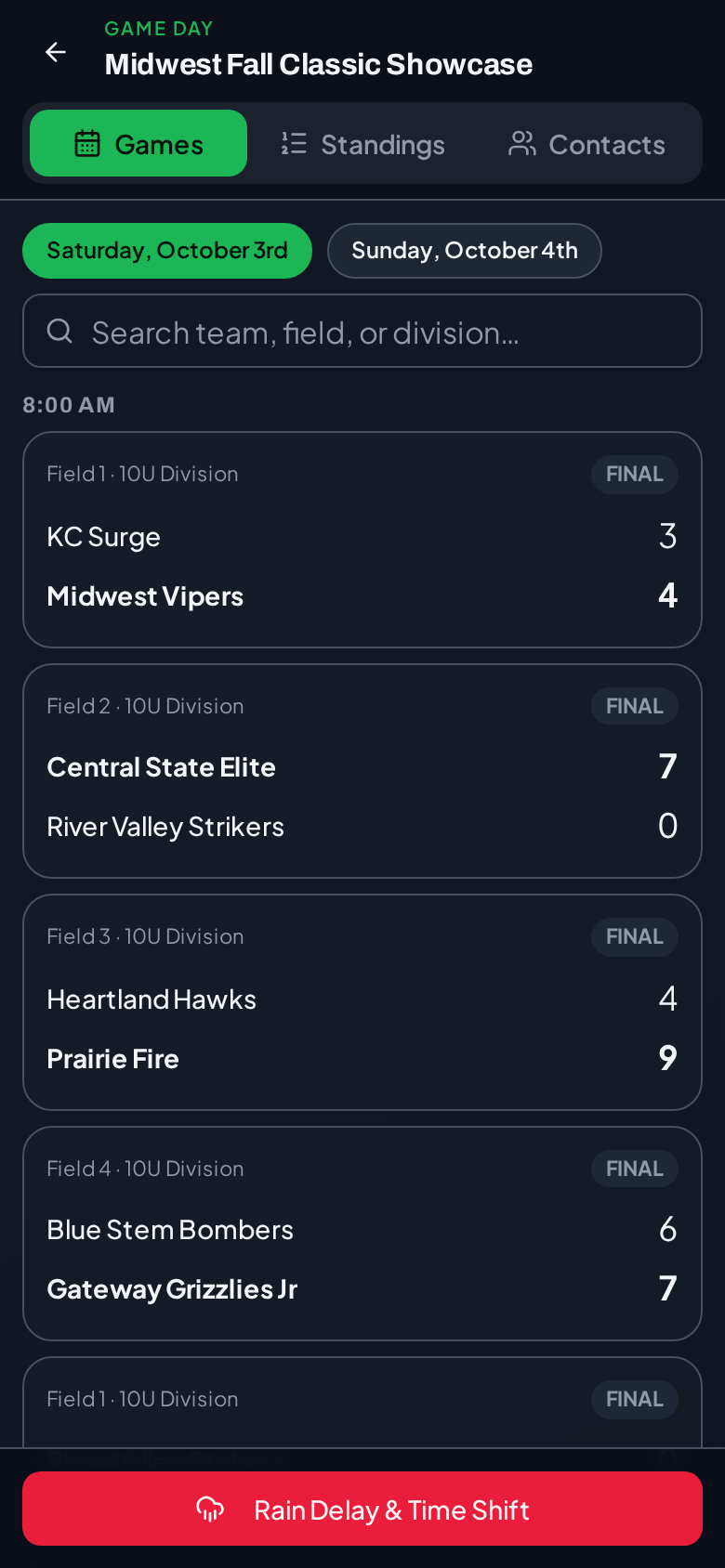
Game Day console (phone)
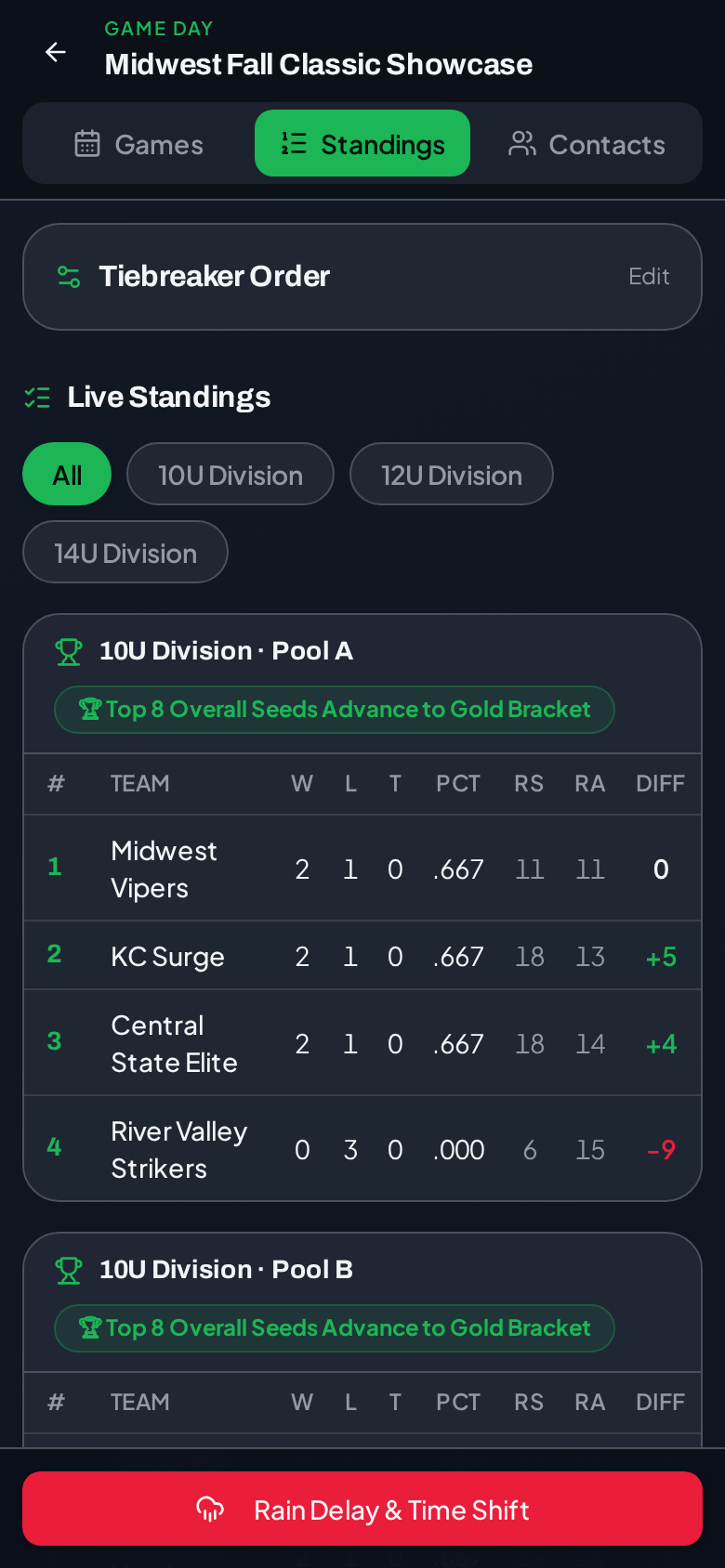
Tap the green Game Day button. Games: the whole day by start time — tap one to score, search by team, field or division. Standings: live tables. Contacts: call, text or email any team's coach. You stay signed in between rounds.
Staff links
Under Staff, create a no-account link for a scorekeeper and choose which fields they can score.
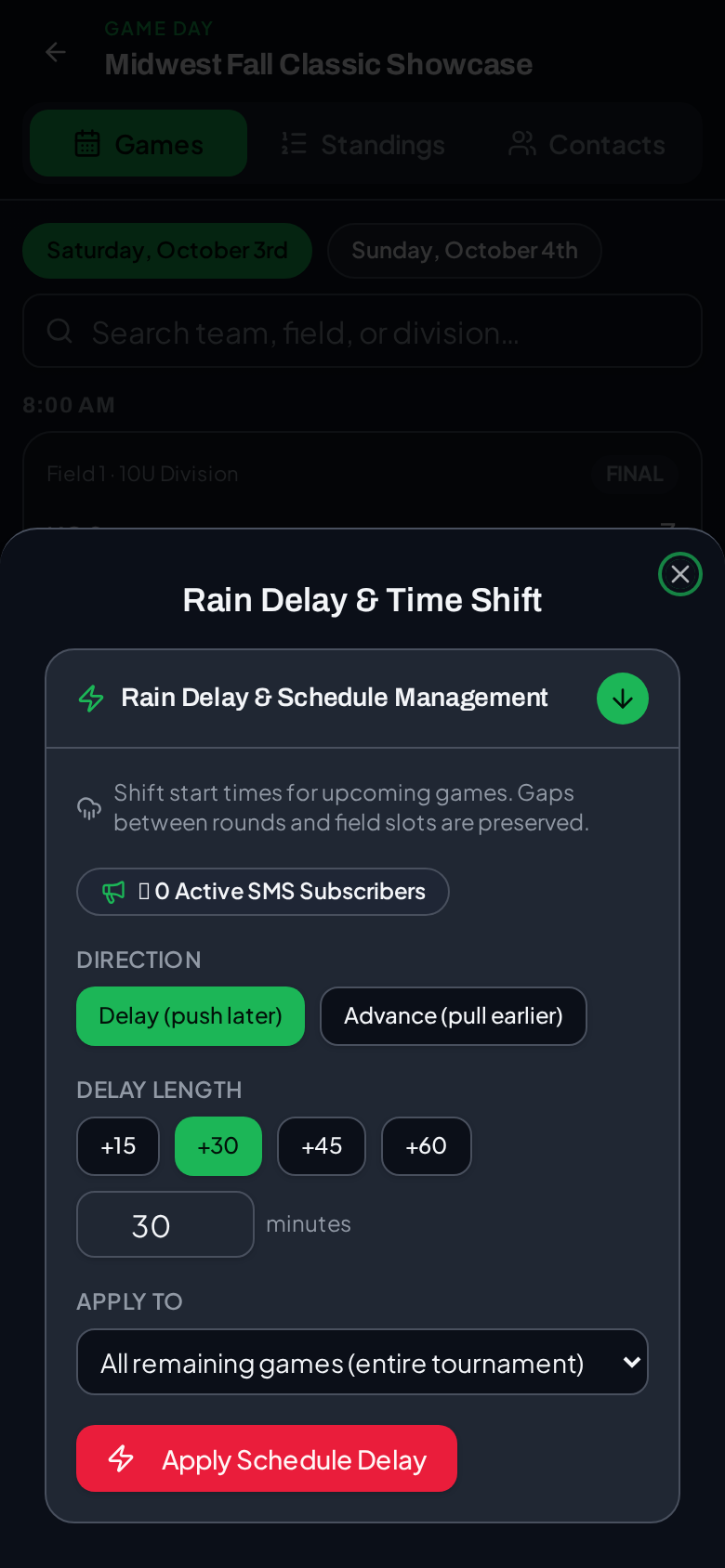
Rain delay & time adjustments
Open Rain Delay & Schedule Management (or the red button on Game Day), pick the fields and start time, and shift games. Fans see the delay and new times immediately.
Chapter 5
Standings & Brackets
Pool play rolls straight into bracket play.
Tiebreakers
Set the tiebreaker order per event (win %, head-to-head, runs allowed, run differential and more). Head-to-head applies to two teams only if they played; with three or more, it applies when every tied team played each other or one team beat all the others.
Seeding
Choose Overall record (best record is the 1 seed) or Cross-pool by finish (pool winners are the top seeds, then 2nd-place finishers, and so on). Same-pool first-round matchups are avoided where possible.
Single & double elimination
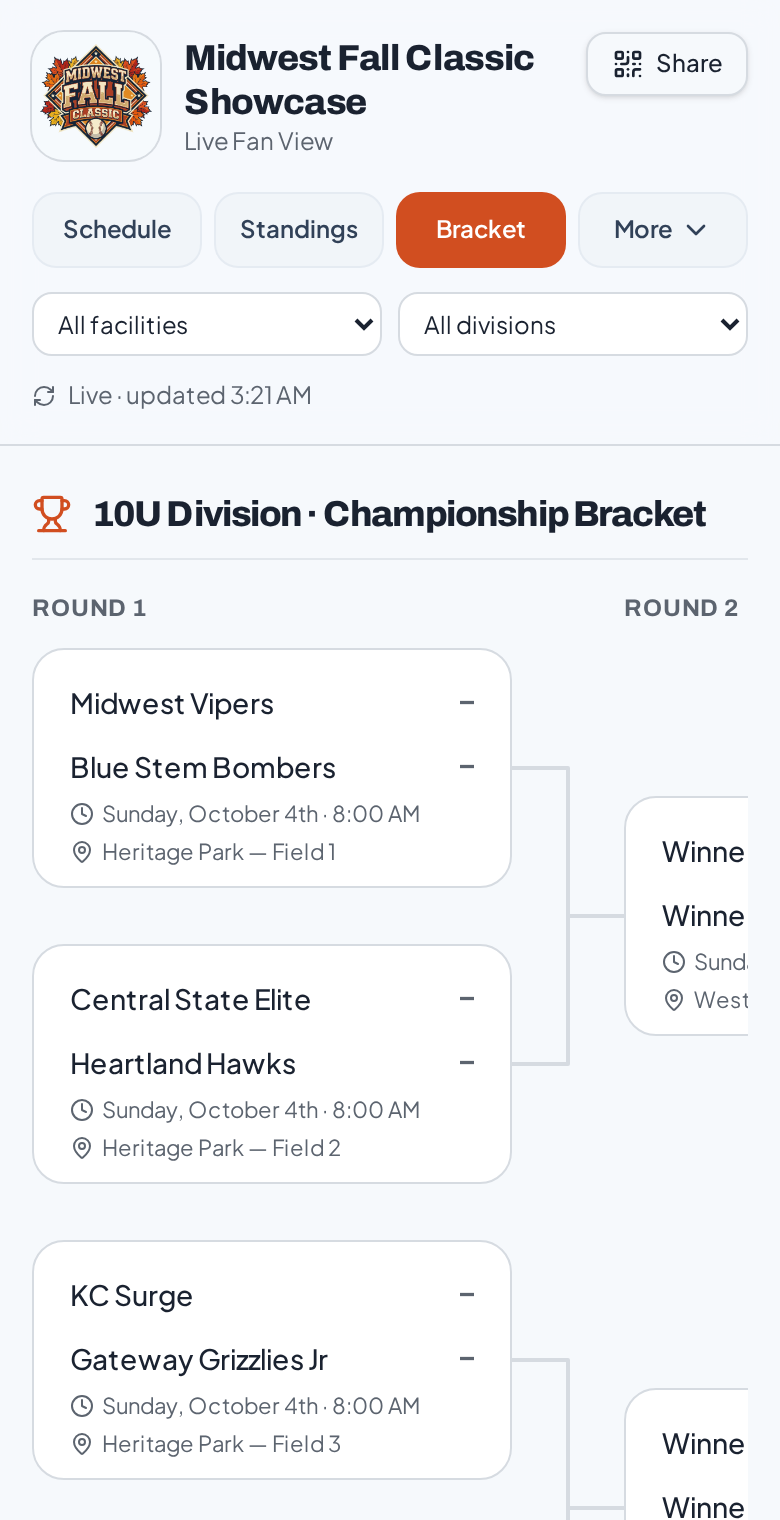
- Build the bracket for each division.
- Click Populate teams once pool play is final — opening matchups fill and byes auto-advance.
- Later rounds fill as each game is finalized.
Chapter 6
Fan View
A live, mobile-friendly page for parents, players and coaches.
Sharing
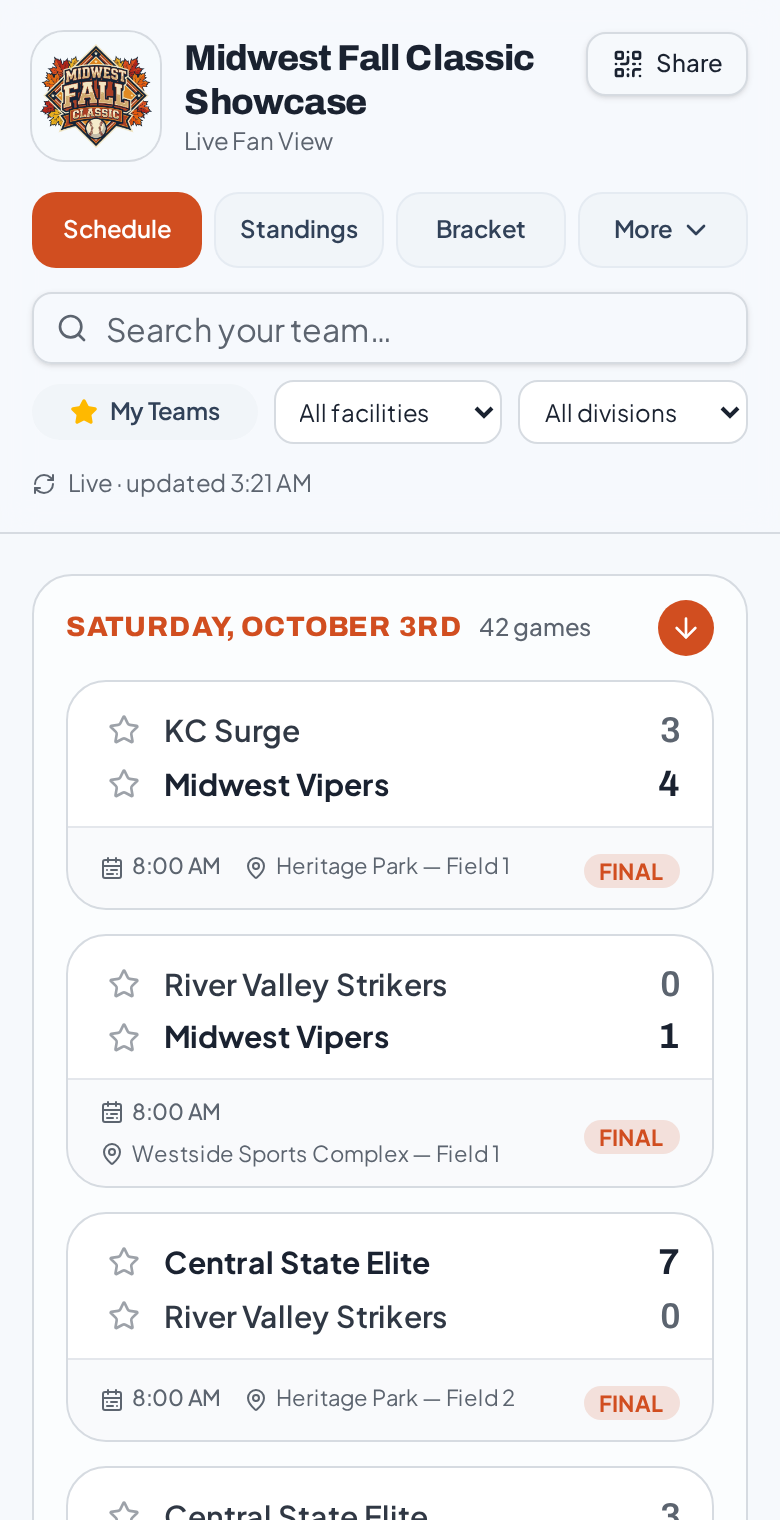
Use Share or the QR code on the fan view header. Print the QR for check-in tables and dugouts.
What fans can do
- Search for their team and star favorites (My Teams).
- Filter by division and, for multi-facility events, by facility.
- Switch between Schedule, Standings, Bracket, and More (Venue & Hotels, Event Info).
Chapter 7
Branding, Sponsors & Info
Make the event yours and add value for sponsors.
Branding
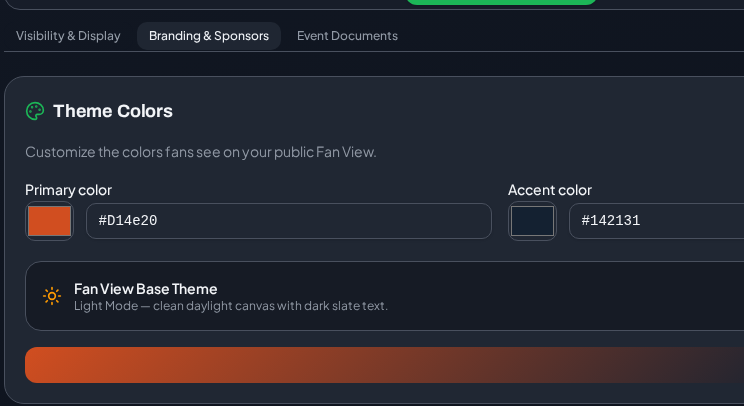
Upload your event logo, customize the fan-view colors, and optionally include team logos.
Sponsors
Add local sponsor banners, images and links. Sponsors appear on the fan view — included with Co-Pilot.
Hotels & documents
List partner hotels and upload rulebooks, waivers, roster forms and schedules so fans and coaches always have them.
Chapter 8
Managing Events
Hand off, archive or remove events.
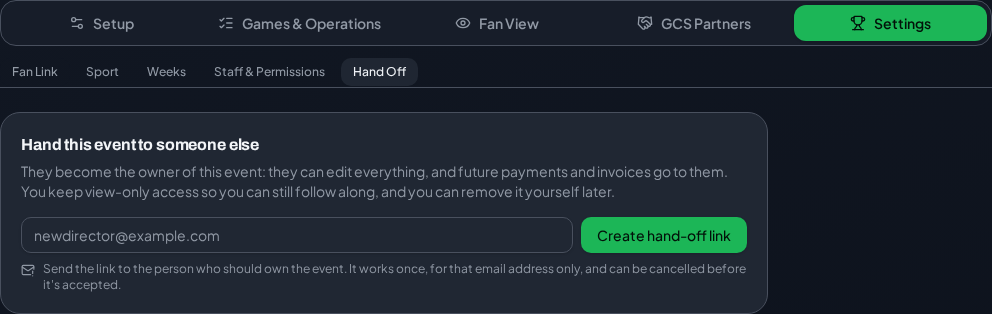
Hand off an event
- Open the event's Hand Off tab and create a hand-off link.
- Send it to the new director. When they accept, they become the owner.
- You keep view-only access. Each link works once, for the invited email address.
Archive
Archive hides an event from your main list without deleting anything — the fan page stays live. Restore it any time from Archived.
Delete
Only the owner can archive or delete. Type DELETE to confirm removal.
Chapter 9
Support
We're here to help.
Contact
Email alec.verhoff@gc-sports.com or visit groundcontrolsports.com.